 MarkHub
Inventory
Monitor supplier price & stock
Connect a product to its supplier and understand the separate controls for monitoring, restocking and out-of-stock protection.
- 01
Find the product in your inventory
Open your inventory (SKUs in the demo menu) and locate the product. Check the Monitor column, supplier status and Amazon listing status separately.
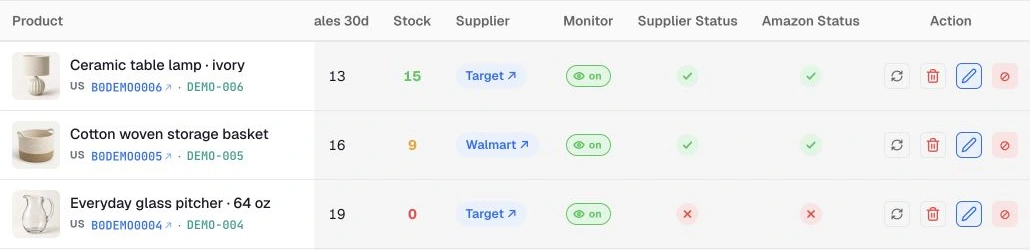
Detail: Monitor, Supplier Status and Amazon Status describe separate parts of the product’s configuration. - 02
Check the supplier link and cost
Choose Edit product, then use Edit link to check or change the Supplier product URL. Confirm that the public page matches the correct product and variant, and review the purchase cost. The product settings also contain your pricing and monitoring controls.
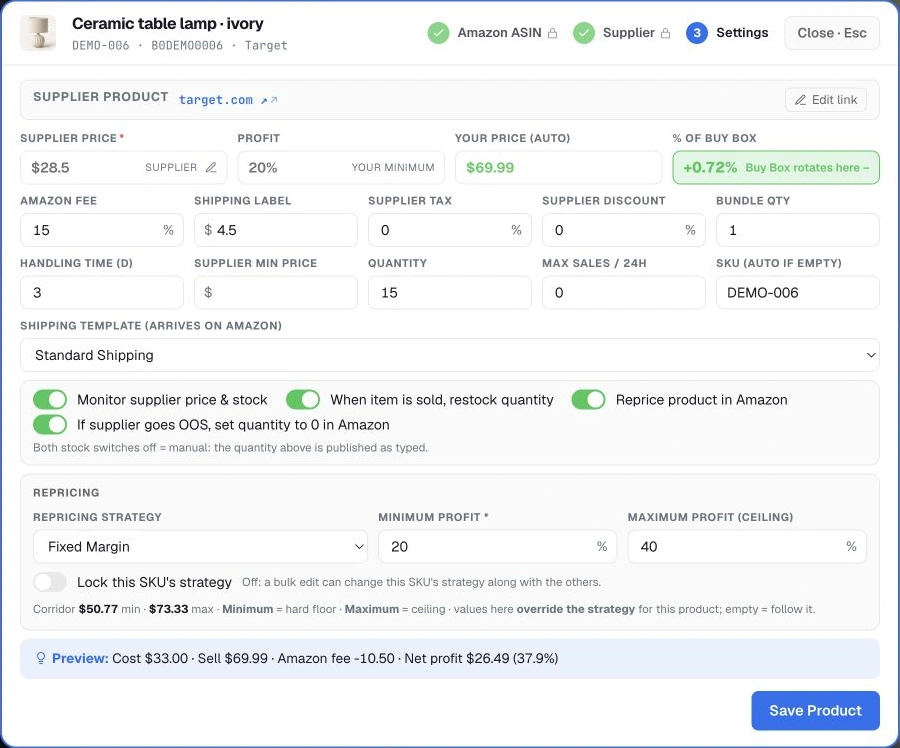
Open Edit product from SKUs to review the supplier link, costs and pricing settings. Pasting a supplier URL does not activate monitoring by itself. Listing capacity and monitored-product limits both apply.
- 03
No automatic supplier reading? Use a manual cost
A saved supplier link does not mean MarkHub can read that retailer automatically. If automatic reading is unavailable, keep the accepted product link, enter Supplier Price manually and leave Monitor supplier price & stock off. Follow the Manual supplier setup step in Add and configure a product for the full workflow.
Manual supplier cost is separate from manual selling price. A product with a manual cost can still use a repricing strategy with Reprice product in Amazon enabled. For manual stock management, turn off both When item is sold, restock quantity and If supplier goes OOS, set quantity to 0 in Amazon. Update your available quantity yourself. On a supported supplier, choosing a manual cost alone does not turn stock monitoring off.
- 04
Understand the automation switches
For a supplier with automatic reading available, enable Monitor supplier price & stock. Review If supplier goes OOS, set quantity to 0 in Amazon separately from When item is sold, restock quantity and Reprice product in Amazon. Select Save Product after reviewing the settings.

Detail: each switch controls a different part of monitoring, stock handling or repricing. OOS protection requires monitoring. When an out-of-stock supplier signal is detected and the relevant option is enabled, MarkHub can set Amazon quantity to zero. Detection and updates are not instantaneous. Restocking is a separate option.
Try it in MarkHub.
Explore these screens with sample products and orders. Demo changes stay separate from real stores.
Open the interactive demo