 MarkHub
Inventory
Add and configure a product
Add the correct Amazon product, choose monitored or manual supplier setup, and review costs and repricing before submitting.
- 01
Find the Amazon product
Open Add Product. Paste an ASIN or Amazon product URL and select Search. Review the selected product in Review Queue and open its settings.
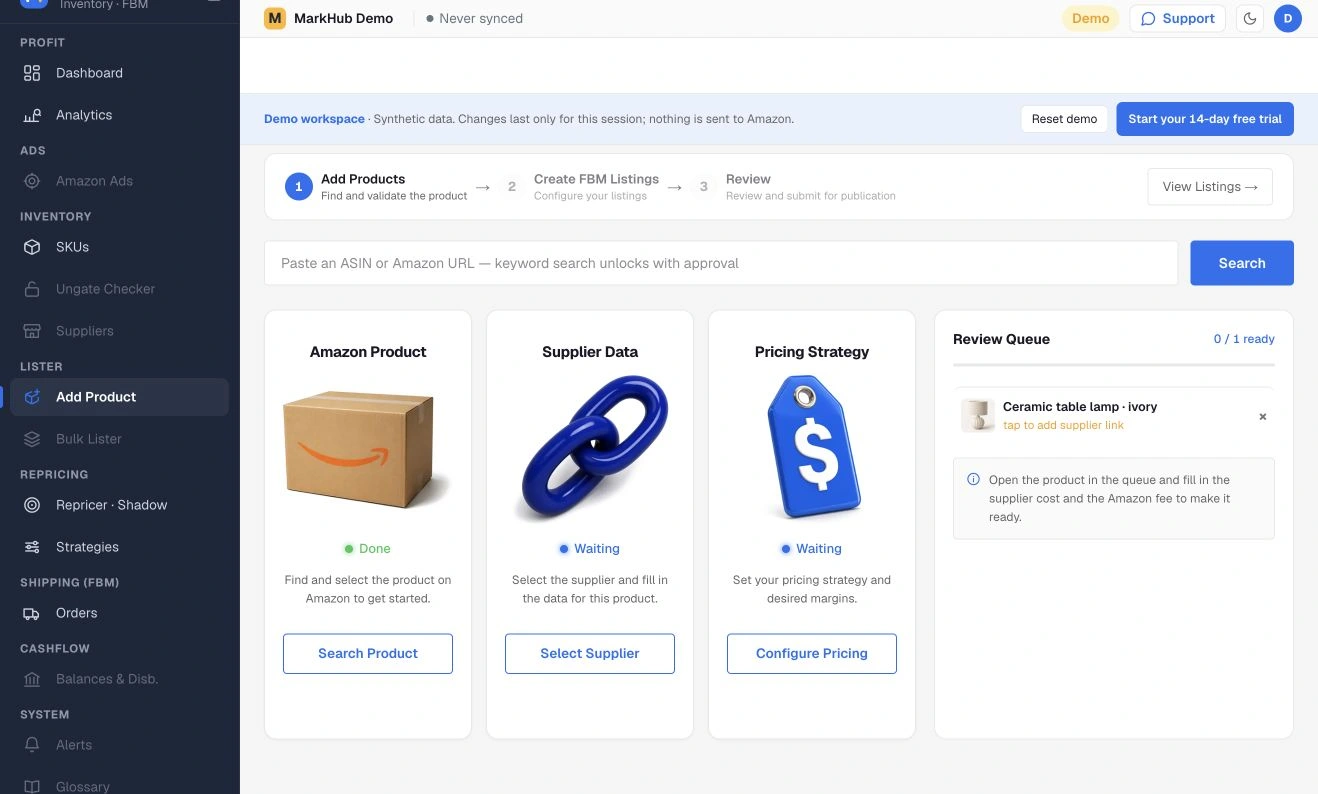
Check the product identity in Review Queue before finishing its configuration. - 02
Choose monitored or manual supplier setup
Open the queued product and paste the exact supplier product page into Supplier product URL. This is separate from the Amazon ASIN or URL used to find the listing. Check the product, variant and pack size. For a retailer with automatic reading available, review the returned price and enable Monitor supplier price & stock if you want ongoing monitoring. If automatic reading is unavailable, use the manual supplier setup below; you do not need to discard an accepted link just because MarkHub cannot read its price.
Use a valid public product-page link and follow any validation message shown. A supplier does not need automatic reading support for you to save an accepted link and manage costs manually.
- 03
Manual supplier setup: save the link and enter your cost
Keep the accepted Supplier product URL in the product settings. If the price lookup returns no price, Supplier Price becomes editable; enter the purchase cost yourself. If the field is still locked, select its pencil to switch to Supplier Price (manual). Review the amount before finishing the product. For a retailer without automatic reading, Monitor supplier price & stock stays off and cannot be enabled. The link remains saved with the product, and the manual cost is the cost MarkHub uses for pricing.
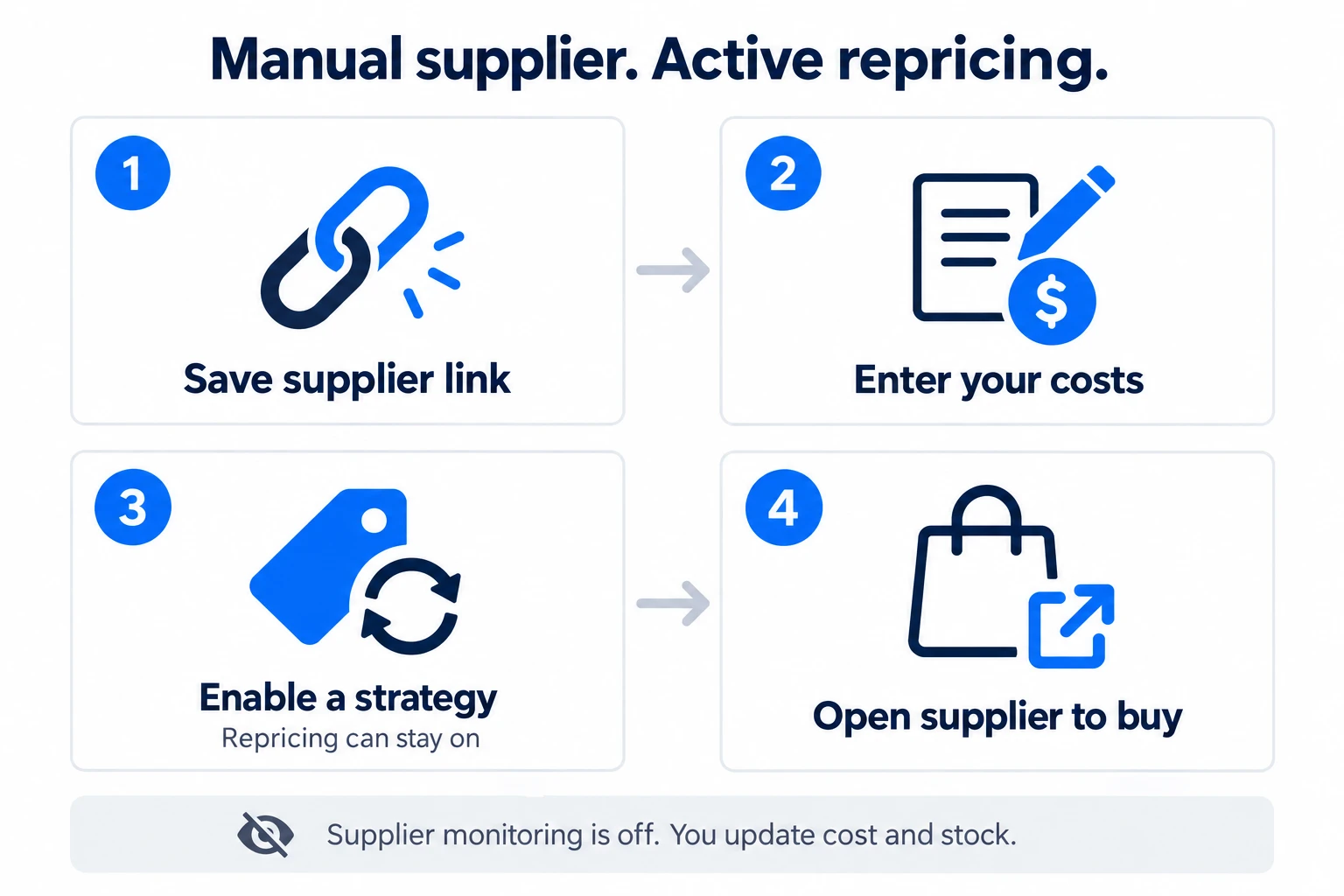
Illustrated workflow: accepted supplier link → manual purchase cost → optional repricing with a strategy. Supplier monitoring remains off when automatic reading is unavailable. You maintain the cost and check supplier availability yourself. With monitoring off, MarkHub does not automatically refresh supplier price or stock. For manual stock management, turn off both When item is sold, restock quantity and If supplier goes OOS, set quantity to 0 in Amazon. Update your available quantity yourself. This setup does not use a monitored-product slot, but listing capacity still applies.
- 04
Review costs and listing fields
Supplier Price is your purchase cost, not the Amazon selling price. Review Amazon Fee (%), Shipping Label ($), Supplier Tax (%) and Supplier Discount (%) using your own costs. Check Bundle Qty against the units needed for one sale. Review Quantity, Handling Time (d), your SKU and Shipping Template for the listing. Check the calculated selling price and net profit after changing any cost.
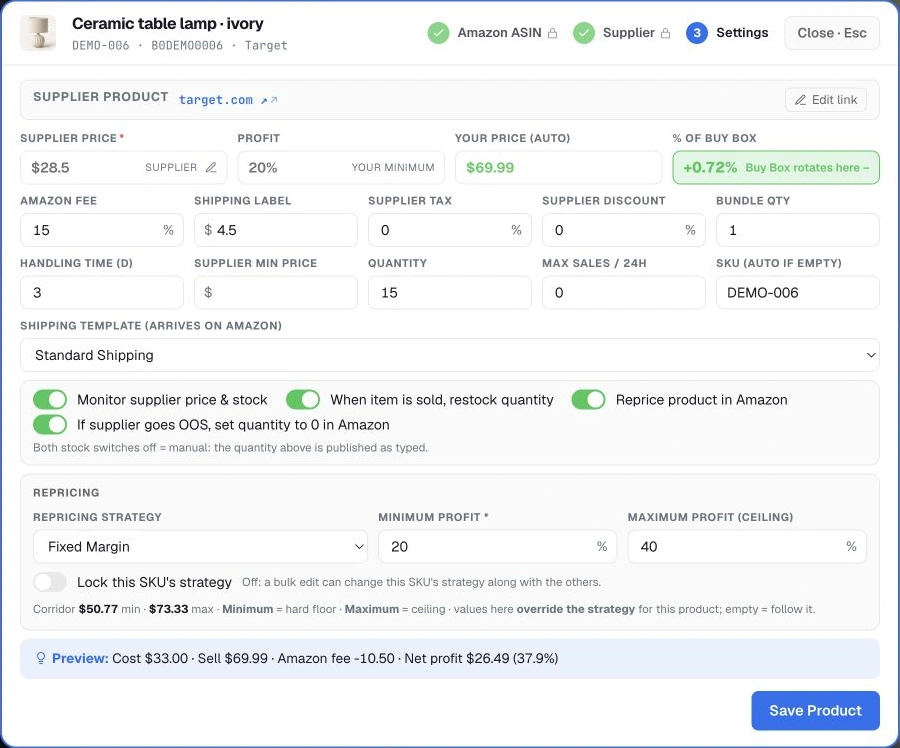
Review cost inputs separately from listing quantity, handling time and selling price. Entering a manual cost does not make MarkHub verify that amount or the supplier's stock. A profit preview depends on accurate costs, fees, quantities and settings; it is not a guarantee of profit.
- 05
Keep repricing separate from supplier monitoring
To use automatic repricing with a manual supplier cost, assign the intended strategy and enable Reprice product in Amazon. Review the strategy's minimum and maximum profit settings and any product-level overrides. MarkHub can price from the cost you saved without automatic supplier reading, subject to the strategy, listing capacity and normal pricing checks.
Supplier Price (manual) is not the same as No strategy. No strategy uses a manual selling price and does not automatically reprice the SKU. Enabling the repricing switch without an assigned strategy is not enough. Switching supplier monitoring off does not by itself switch repricing off.
- 06
Check the profit preview
Review the calculated costs, selling price and profit together. If you change a cost or pricing input, check the preview again before saving.
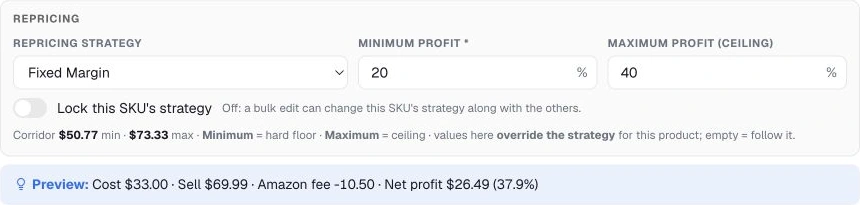
Detail: pricing boundaries and the profit preview help you review your inputs. - 07
Finish your review
Save the product settings, then review the items in Review Queue before submitting. Check product identity, costs and automation switches for each item.
The demo lets you explore this workflow using synthetic products. It does not publish listings, purchase inventory or send changes to Amazon.
- 08
Open the saved supplier link to buy
After submitting the product successfully, open Inventory and find the SKU. In the Supplier column, select the supplier name with the external-link arrow. The saved product page opens in a new tab, where you can check the current price, variant and availability and complete your purchase manually on the supplier's website. You can use this link even when automatic supplier reading is unavailable.
Saving a supplier link does not place an order. You choose what to buy and complete checkout yourself. If the supplier name has no link, edit the product and check its saved Supplier product URL.
Try it in MarkHub.
Explore these screens with sample products and orders. Demo changes stay separate from real stores.
Open the interactive demo