 MarkHub
Orders
Read and manage your orders
Find an order, review its status and costs, and use Export CSV to download orders by date, status, supplier or search.
- 01
Find the order
Open Orders. Search by product name, ASIN, SKU, order ID or city. Use the status, supplier and purchase-date filters to narrow the list.

Detail: use search, status, supplier and purchase-date filters to find the order. - 02
Choose and reorder desktop columns
On the desktop Orders table, click Columns at the top right. Check a column to show it or uncheck it to hide it. Drag the dotted handle beside a column name up or down in the menu to change its position in the table. Changes apply immediately. Your column visibility and order are saved in this browser when local storage is available and remain after reloading; they do not sync to other browsers or devices.
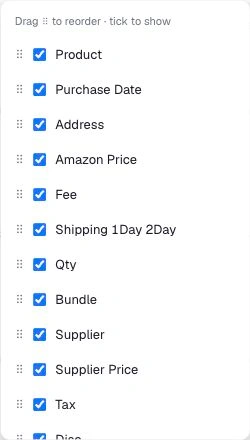
Real MarkHub Columns menu, cropped to exclude order data: tick to show a column and drag the dotted handle to reorder it. These preferences affect the desktop table only. On a phone, orders use cards with a fixed grouping of fields and no drag-to-reorder control. Column preferences do not change the columns included in Export CSV.
- 03
Track packages from your orders
MarkHub automatically brings in tracking numbers when Amazon provides them for an order. The Tracking field shows a carrier label when the number is recognized. Click the carrier and tracking link to open tracking in a new tab. If an order has multiple package tracking numbers, each number has its own link. On a phone, open Order details & costs to find Tracking. If tracking is missing, use + Add to enter it; use the pencil to edit an existing number.
Numbers you enter that are not recognized among that order's Amazon tracking numbers are preserved. Numbers already reported by Amazon can be refreshed when packages are added or labels change. If the carrier is not recognized, the link is labeled Track and opens 17TRACK.
- 04
Export orders to CSV
On Orders, choose your purchase-date range in From and To, click Search, then click Export CSV. The export respects the applied date, status and supplier filters, search and sorting. For example, select Delivered to buyer and Walmart, set From to September 1 and To to September 30 of the same year, click Search, then Export CSV to download matching orders for September. With no filters applied, the export includes all available orders from the current store, subject to the limit below. It ignores pagination, so it is not limited to the current page. The CSV Status column contains the stored order status, not the displayed badge: Pending and Unshipped can both export as pending, and an order showing Delivered to buyer can export as shipped. Status shown contains the badge label displayed in MarkHub, and Amazon package status contains the stored Amazon package status.
Each export is limited to 5,000 rows. If more orders match, a TRUNCATED warning appears at the end of the CSV. Split the date range or narrow the filters and export each part separately to obtain all matching orders.
- 05
Follow the profit calculation
Review Amazon Price, Fee, Supplier Price, shipping costs, Profit and Margin. Compare the full set of costs rather than the selling price alone.
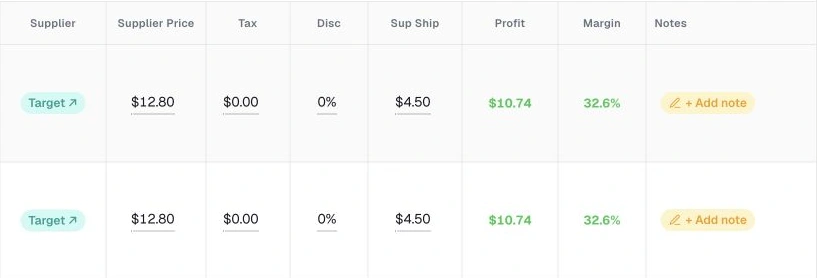
Detail: order costs, profit and margin are shown together for comparison. Historical order costs are stored separately from current product settings. Editing the product registration does not rewrite the cost of earlier orders.
- 06
Understand order status and colors
Each order shows one status badge. Amazon supplies Pending (orange), Unshipped (red), Waiting for pickup (yellow), Picked up (blue), Delivered to buyer (green) and Returning to seller (black). Refunded (red) and Canceled (gray) are the two statuses you can mark in MarkHub. Badges use solid backgrounds with white text and do not show a last-checked time. Pending means payment is awaiting confirmation: do not buy from the supplier or print a label yet. Unshipped is the work queue for paid orders ready to process: buy from the supplier, buy the shipping label and ship. Address, price or other details may be unavailable while payment is pending.
PendingAwaiting payment confirmation. Do not buy from the supplier or print a label yet.
UnshippedPaid and ready to process: buy from the supplier and ship.
Waiting for pickupLabel bought; the carrier has not collected the package yet.
Picked upThe carrier picked up the package and it is on its way.
Delivered to buyerThe carrier reports delivery to the buyer.
Returning to sellerThe package is coming back to the seller.
RefundedThe order is marked as refunded in MarkHub.
CanceledThe order is canceled or marked as canceled in MarkHub.
Status examples using the same colors and labels as MarkHub. Synthetic examples, not screenshots of real orders. Amazon can also report Undeliverable or Label cancelled. Older orders without updated Amazon information can appear as Unshipped, so check the order in Amazon before processing it.
- 07
Filter orders and update manual values
The top counters show unshipped in red and awaiting payment in orange. The awaiting payment counter appears only when greater than zero. The status filter offers Pending, Unshipped, Waiting for pickup, Picked up, Delivered to buyer, Returning to seller, Refunded and Canceled. Pending and Unshipped are separate filters. Click an order's badge to mark it as refunded or canceled. When available, Undo: back to Amazon status removes the manual override. Pickup and delivery progress come from Amazon; they are not manual choices. Refunded and Canceled take precedence over the package status and are excluded from the Amazon progress filters. Select a dotted cost value to edit that record and review the value before saving.
Status changes here update the MarkHub record; they do not issue an Amazon refund or cancel the order in Amazon. The status gallery uses synthetic examples with the same colors and labels as MarkHub. These examples are visual only and do not change orders. The Columns menu is a real MarkHub screenshot cropped to exclude order data. Other order screenshots use demonstration data. The interactive demo is isolated from real stores and does not update Amazon.
Try it in MarkHub.
Explore these screens with sample products and orders. Demo changes stay separate from real stores.
Open the interactive demo