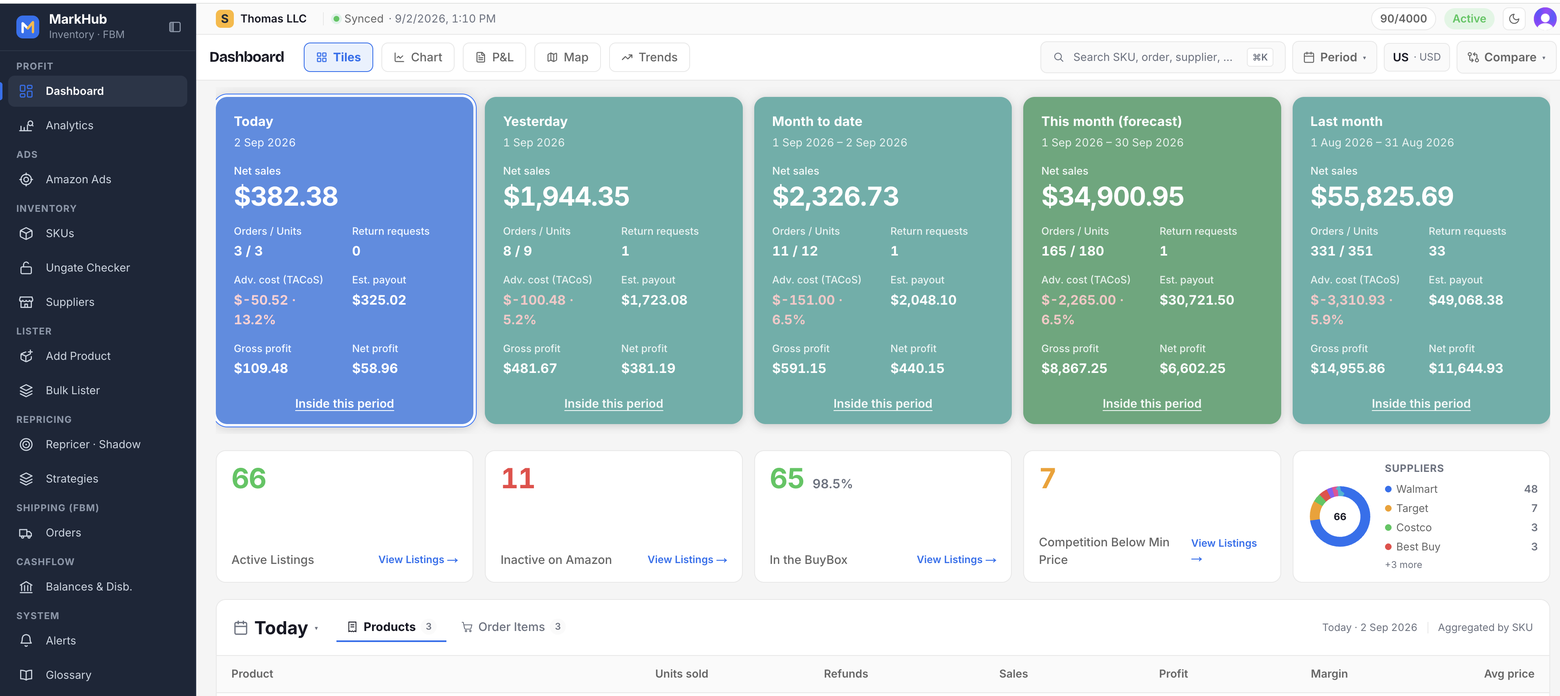
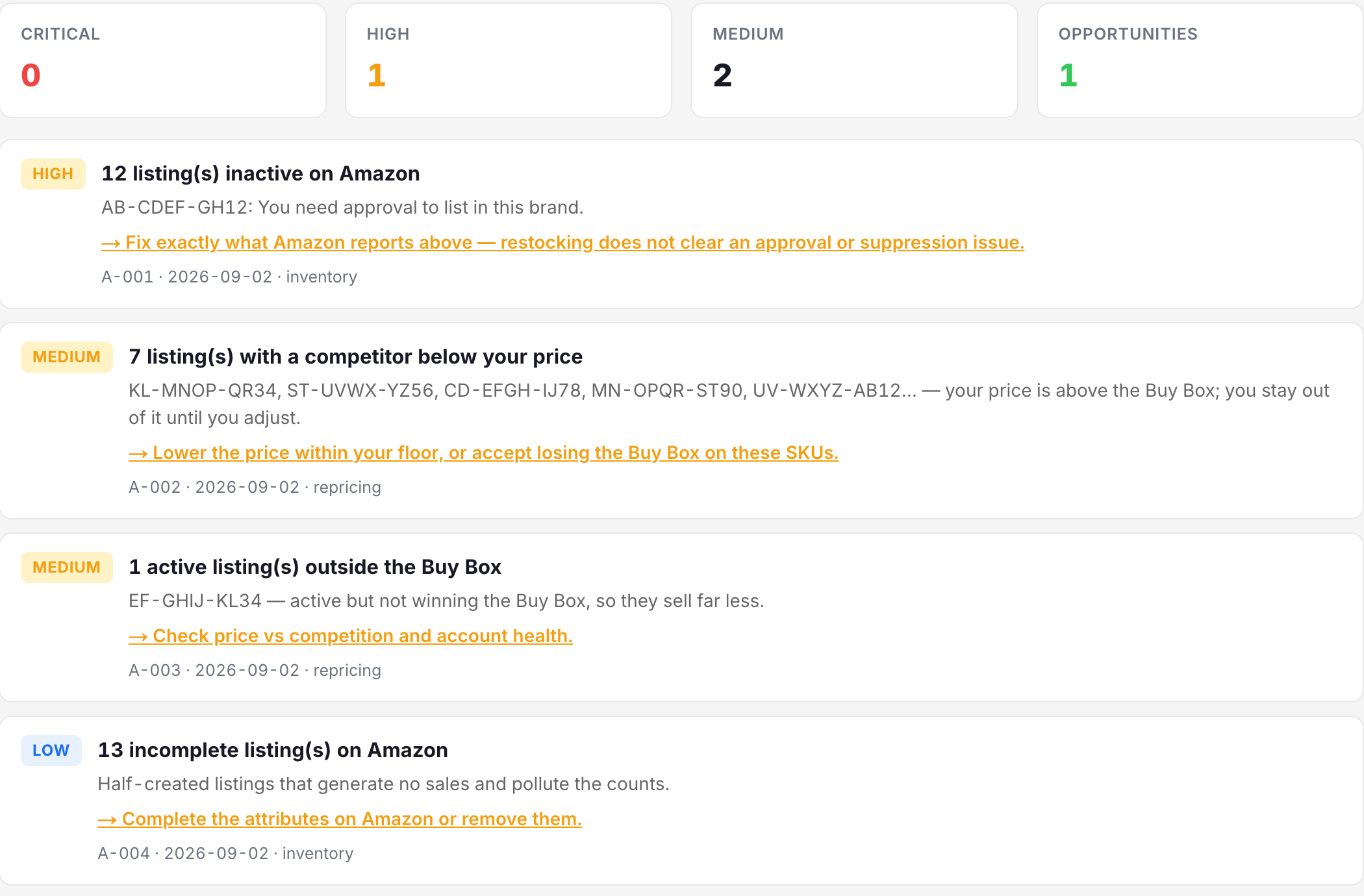
Today, this month, and where it is heading — on one screen. Net sales, orders, ad cost and net profit by period, with a month-end forecast. Below it: what is live, what is inactive, how many listings hold the Buy Box and how many have competition below your minimum. See the full dashboard flow ↓
Live supplier monitoring. Stock protection built in.
MarkHub watches your supplier’s price and stock, keeps repricing within your floor, and sets your Amazon quantity to zero when the supplier is confirmed out of stock.
Monitor the supplier’s price and availability. List your product.
Illustrative workflow. Figures are examples.
Supplier price & stock watched
Select the products to monitor. MarkHub reads their supplier pages, updates the product cost and watches availability while the repricer respects your price floor.
Supplier out of stock?
MarkHub confirms the stock change before acting. Your Amazon offer gets protection when the product you planned to buy is no longer available.
Amazon quantity → 0
With stock protection enabled, MarkHub sets the offer’s quantity to zero on Amazon — helping prevent orders for a product your supplier can no longer supply.
For monitored products with out-of-stock protection enabled. Enable auto-restock to restore your target quantity when supplier stock returns and your listing is eligible.
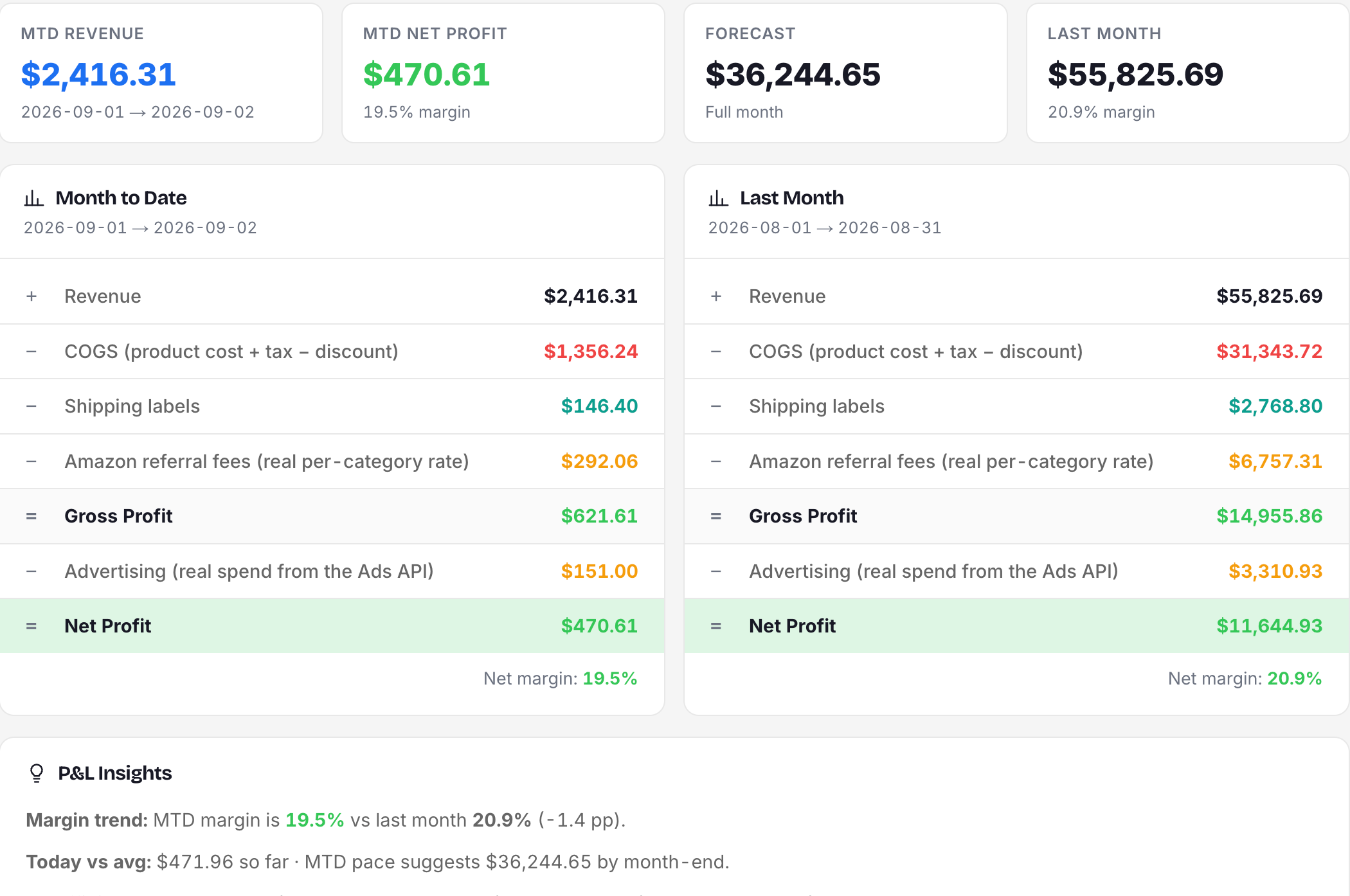
Open the Mark and know how the store is doing. Today, this month, and where it lands.
One screen with the numbers a seller actually checks: net sales, orders, return requests, ad cost, estimated payout, gross and net profit — today, yesterday, month to date, the forecast for the full month and last month. Then the health of the catalogue, and every product that sold in the period.
1. Today, yesterday, month to date, this month's forecast and last month — each card with net sales, orders and units, return requests, ad cost with TACoS, estimated payout, gross and net profit. Refunded orders are taken out whole; canceled ones never count. Below: active listings, inactive on Amazon, how many hold the Buy Box, how many have competition below your minimum, and your suppliers.
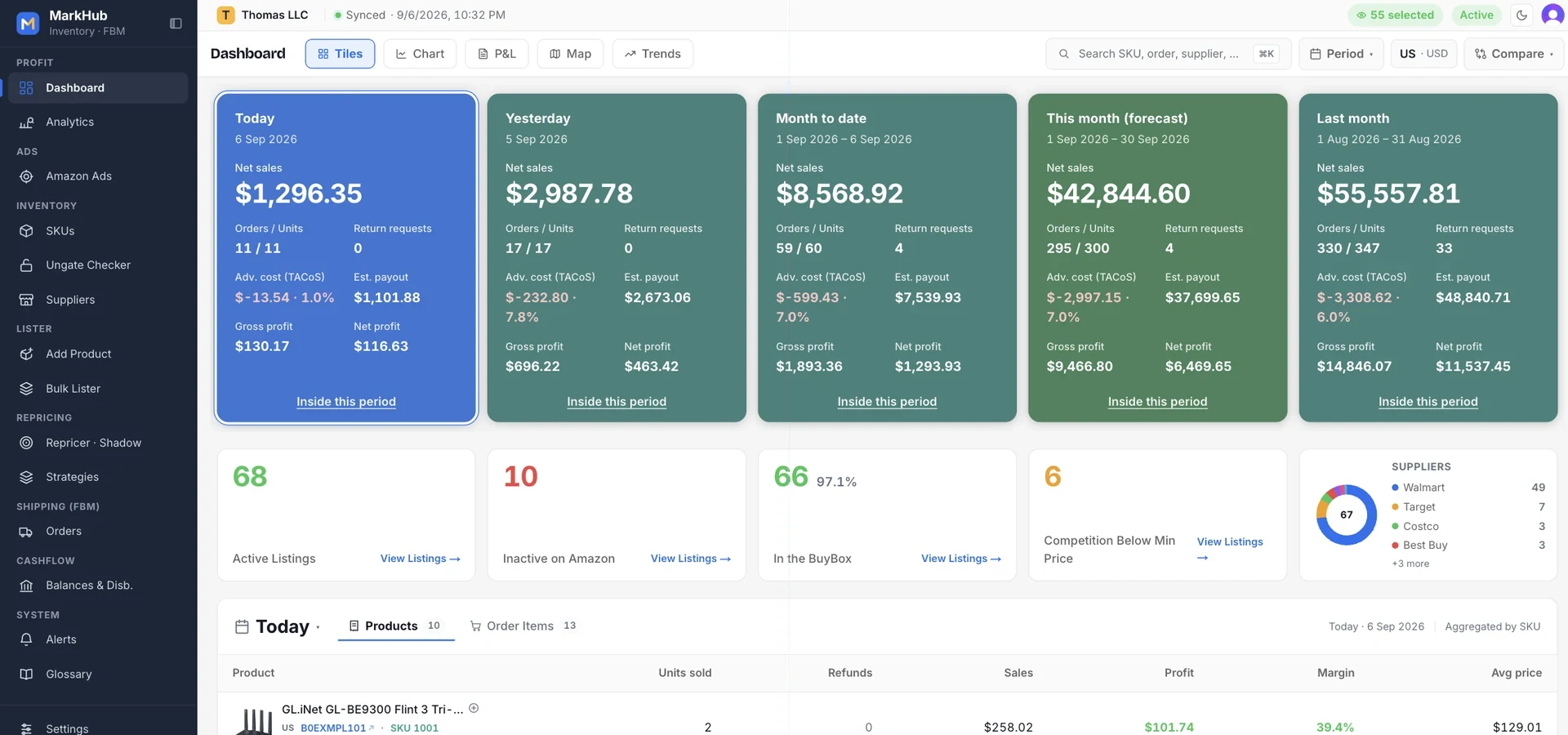
Open the Mark tomorrow morning and know how the store is doing.
Every order tells you what it really made.
Amazon shows you the sale. The Mark shows you the sale minus the referral fee, the shipping label and what you paid the supplier — per order, per day, per month. No spreadsheet on Sunday, no surprise at the end of the month.
1. Amazon price, fee, label, supplier cost — and the profit and margin of that one order, the moment it lands. Status, supplier order ID, tracking and a note per line.
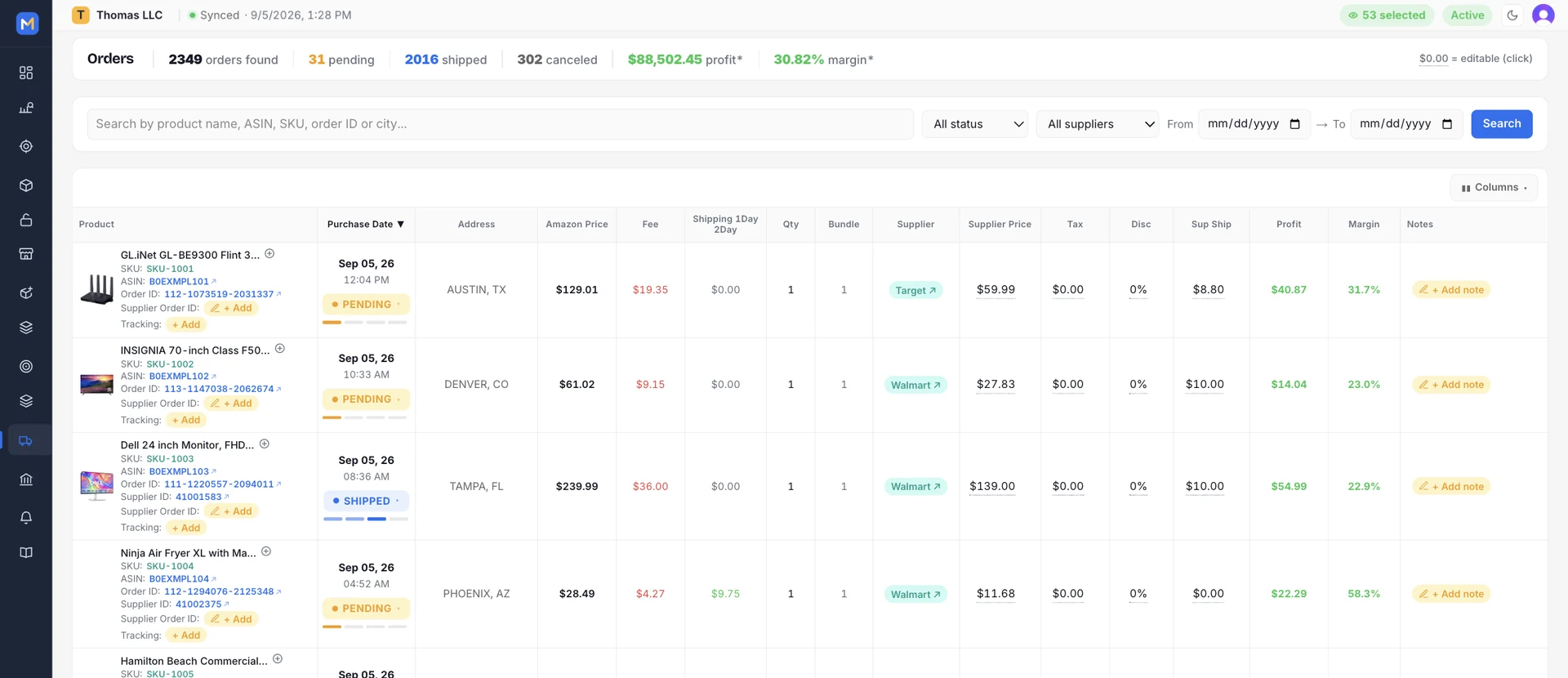
Know what every order really made — including the ones you have already shipped.
Your whole catalogue, with every number that sets the price.
Seller Central shows you a list. The Mark shows you what each SKU costs, what it sells for, who holds the Buy Box, how many it sold in 30 days, how much is left and whether the supplier still has it — on one row per product, in colour. Then it lets you change a hundred of them at once.
1. Photo, ASIN and SKU; cost; Amazon price coloured by Buy Box; Buy Box price; margin; the repricing strategy, right there in a dropdown; sales in 30 days; stock with days left; supplier; monitoring; supplier and Amazon status. The bar on top counts what is live, available, out at the supplier, inactive, missing a supplier or incomplete — and the ones that need action are a click to the filtered list.
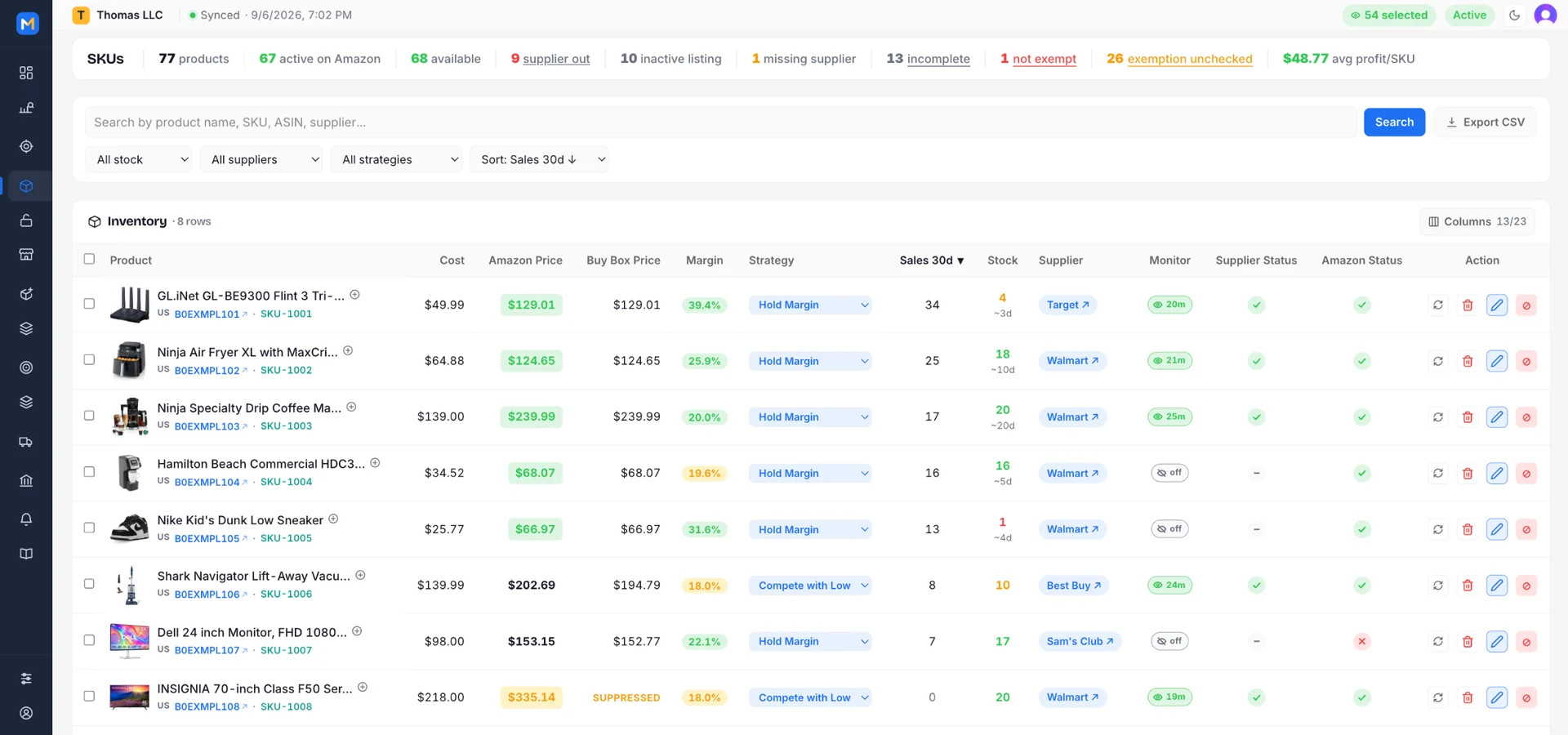
Your whole catalogue, every number that sets the price, on day one.
A floor you set. A fight the engine runs for you.
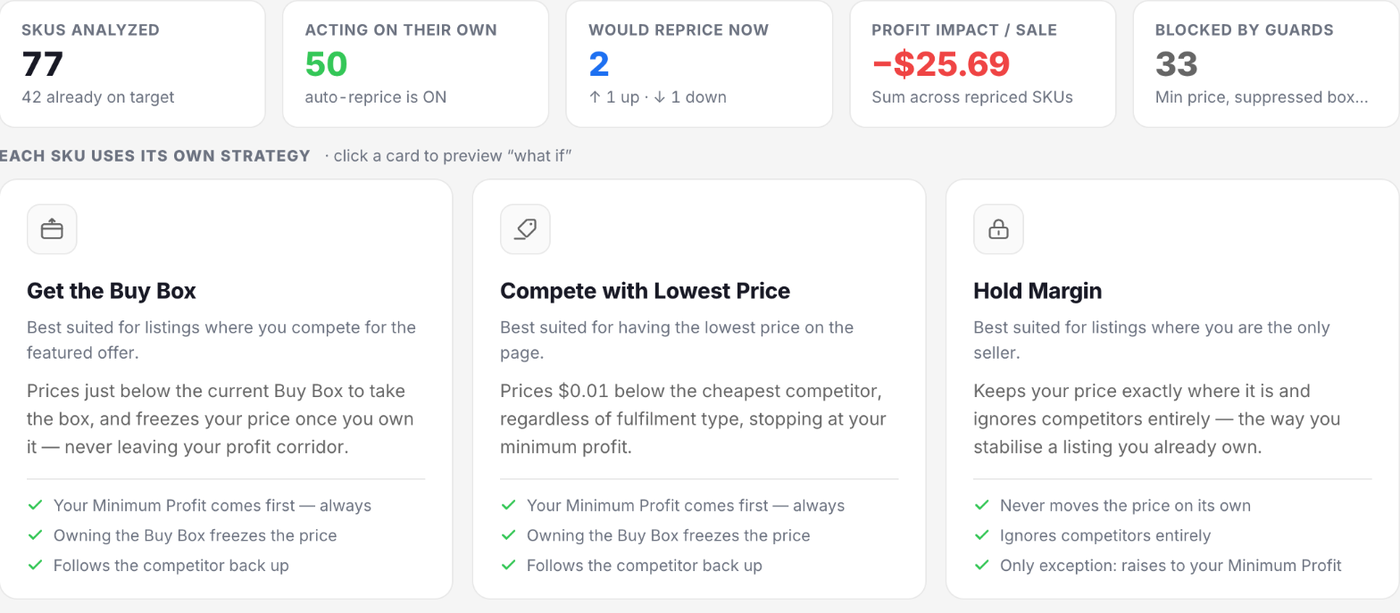
Each SKU runs on a strategy you assign: a minimum profit it never prices below, a ceiling, and a way of competing — take the Buy Box, beat the lowest price, or hold. The engine reprices on its own inside that corridor, and shows you every decision with its reason before it touches a price.
1. “Get the Buy Box” prices just below the box and freezes once you own it. “Compete with Lowest Price” goes a penny — or the amount you set — under the cheapest offer. “Hold Margin” never moves on its own. Each strategy is a corridor — a minimum profit that is a hard floor, an optional ceiling — and its card shows how many SKUs run on it, how many are ready, how many hold the Buy Box and what they sold in 30 days.
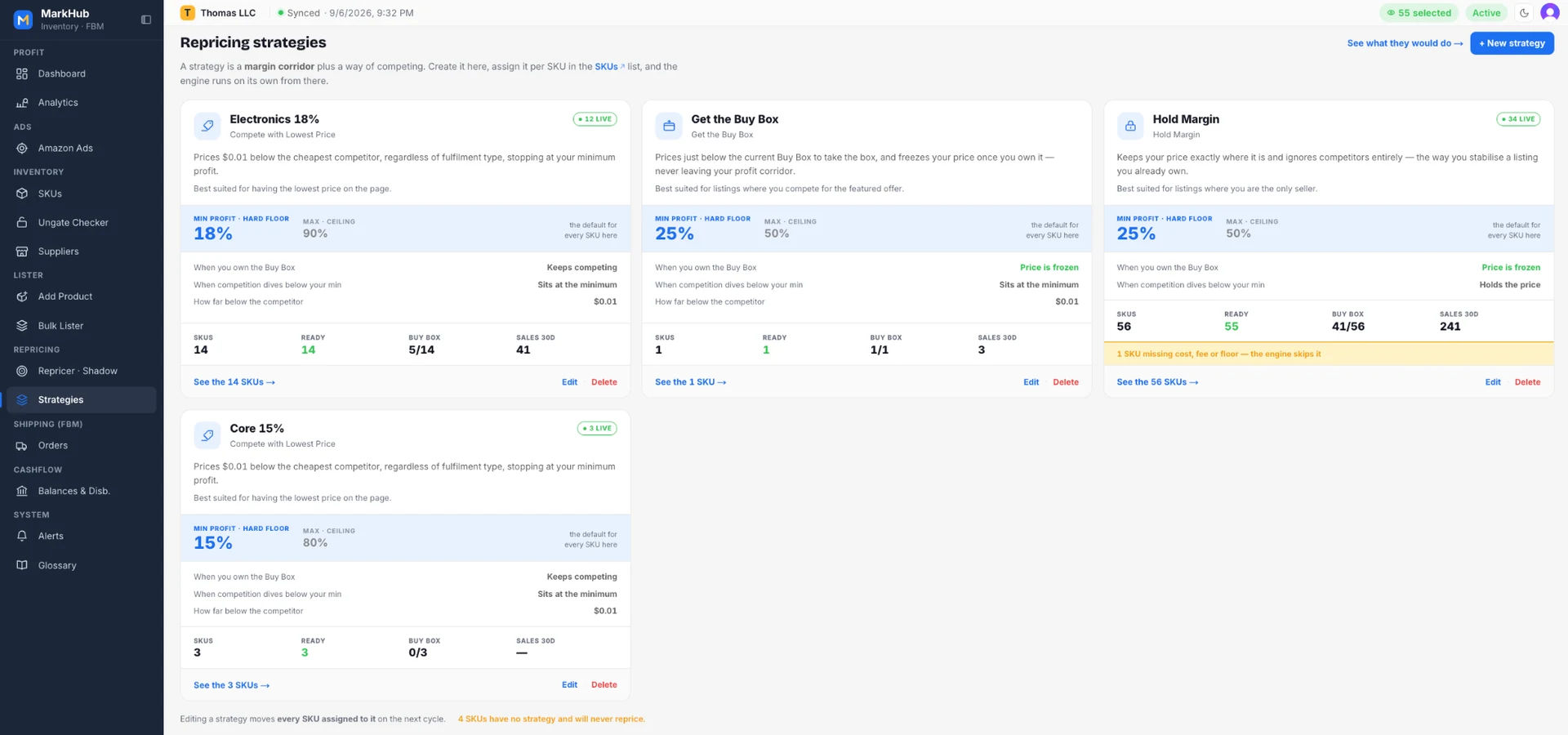
Set the floor once. Let the engine fight inside it while you sleep.
Your margin lives at the supplier. The Mark watches it there.
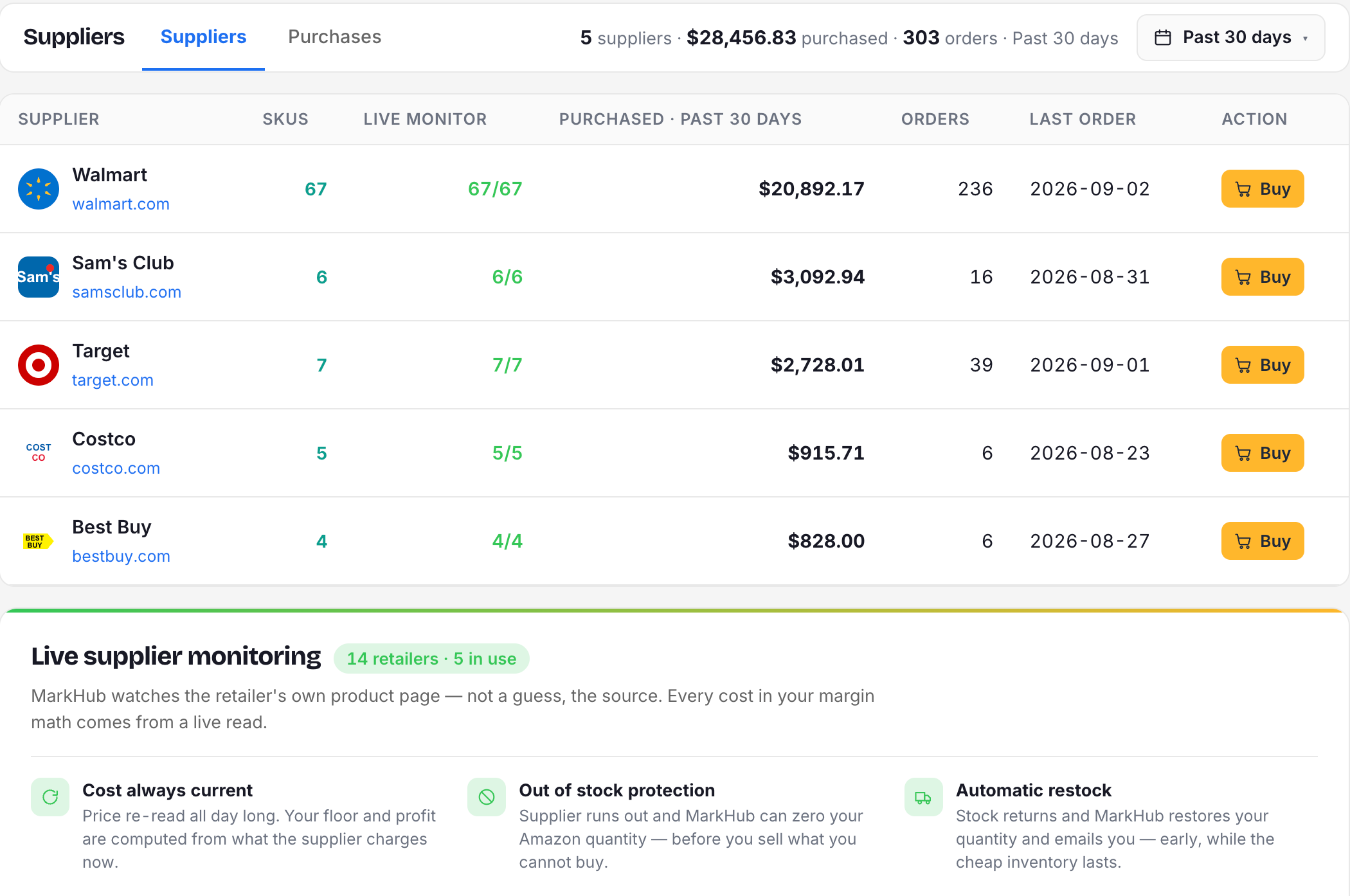
When you buy at retail, the cost that sets your floor changes on someone else's website — and Seller Central never looks there. The Suppliers screen is where you see every retailer you buy from, which SKUs are being watched, what you spent with each one, and what runs out or comes back.
1. One row per supplier: SKUs, how many of them the live monitor reaches, what you purchased in the period, orders and last order — and a Buy button straight to their site. Below, the monitoring block: 14 retailers read automatically, the ones you use lit up, and the three guarantees — cost always current, out-of-stock protection, automatic restock.
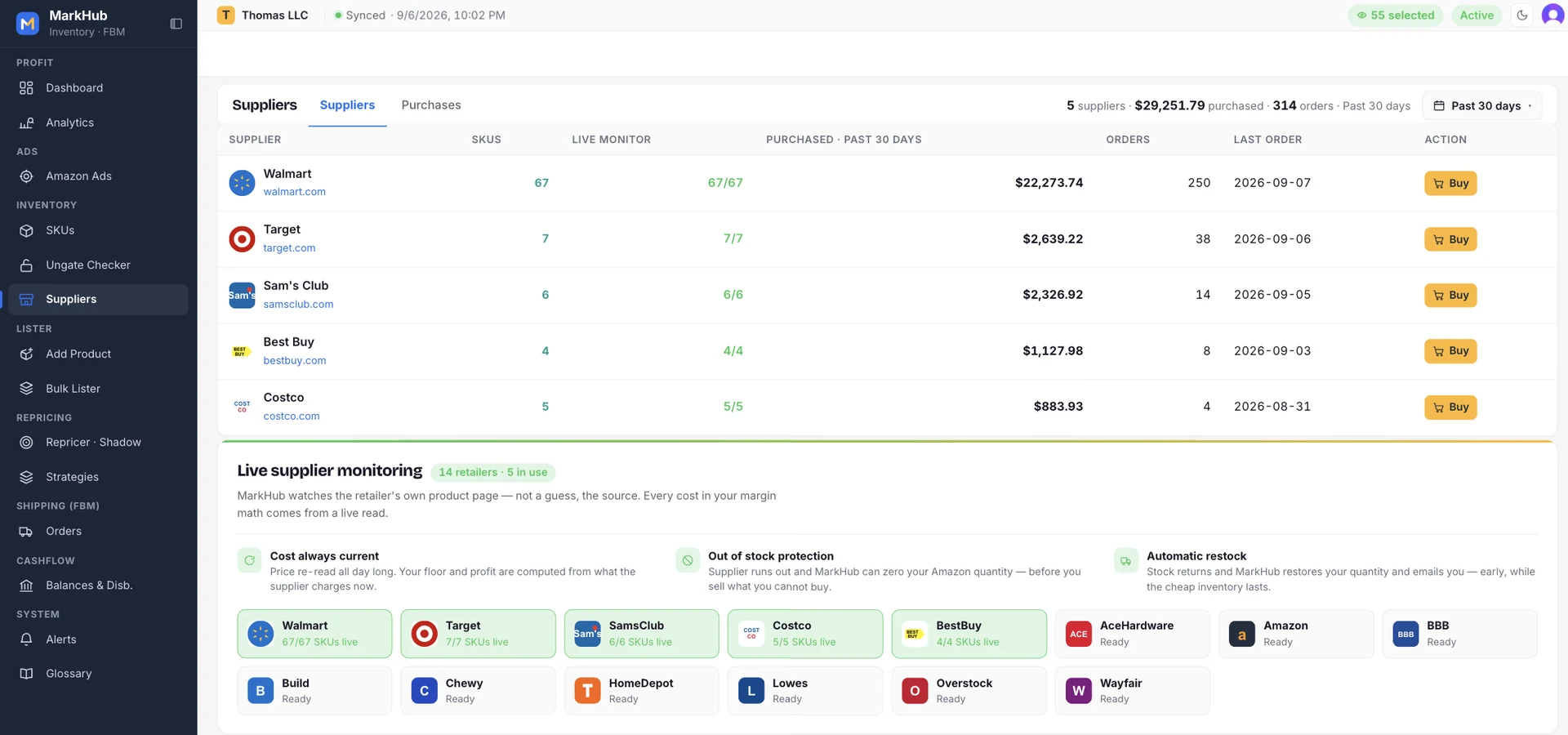
Your cost, watched where it actually changes — the retailer's own site.
Which products are really making you money?
Not revenue — profit. After Amazon's fee, the shipping label and what you paid the supplier. Per SKU, per ASIN, per category — today, 7, 30, 60 or 90 days, month, quarter or year to date, always against the period before it. The answers you'd spend Sunday building in a spreadsheet, already on screen.
1. Highest profit, revenue, units and return requests — one click to the product. Below, the whole store: revenue, profit, margin, ROI, orders, returns — each with its arrow against the previous 30 days.
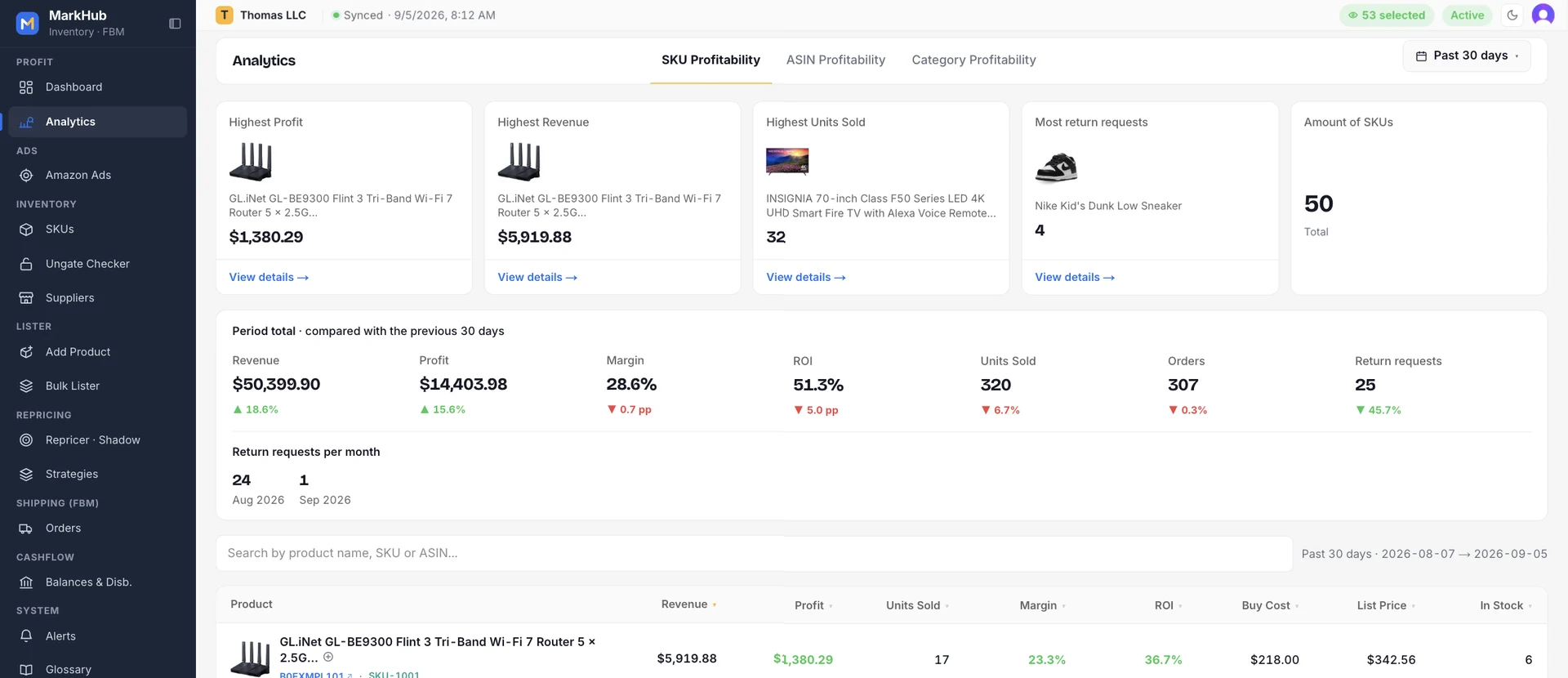
Stop rebuilding this in a spreadsheet on Sunday night.
Don't know what to sell? Start from what already sells.
Opening a brand on Amazon used to mean buying 10, 100 or 200 units, invoicing them, applying, and waiting — one brand at a time, with no way to know which ones would pass straight through. Export a best-sellers list from Keepa — up to 5,000 ASINs, a whole category — drop it in the Mark, and in one run you know which your account can sell today, which are one click from approval, and which to skip. More ASINs to sell, without buying a unit to find out.
1. Pick a category in Keepa and export the ASINs — up to 5,000 per page. The products that already move.
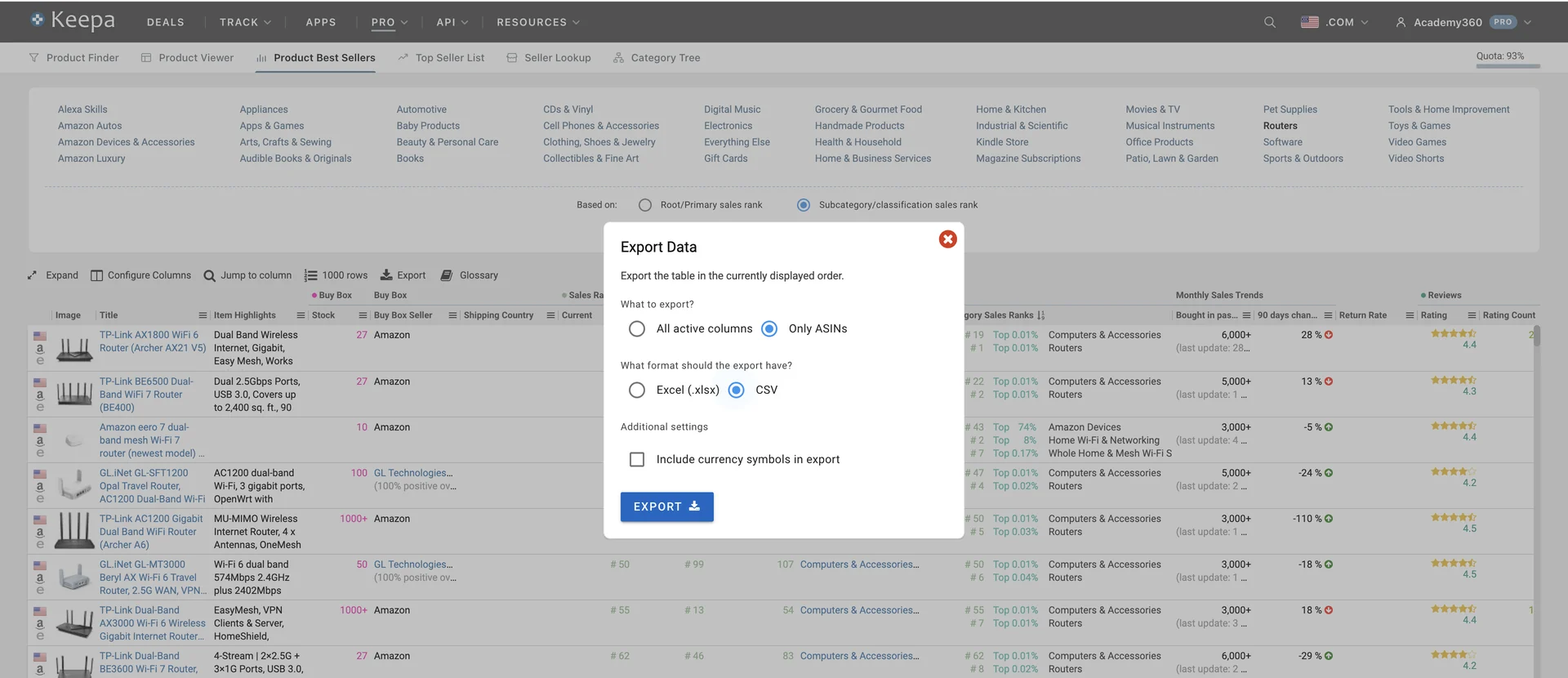
Find out what your account can sell — without buying a single unit to test it.
One formula, applied everywhere
Dashboard, order list, analytics and repricer floor — all the same number, computed the same way.
Your January P&L does not change when the supplier raises the price in March.
Your real category rate, not a flat guess across the catalogue.
A believable wrong number is worse than an honest blank when you are setting a price.
Day, month, supplier, category or SKU — always from the order-level truth.
A corridor, not a race to the bottom
Most repricers optimize for winning the Buy Box. This one optimizes for winning it profitably — a different instruction.
Below your minimum, the price goes to the floor and waits. It never chases a competitor into a loss.
Down to your floor when they undercut. Back up to your ceiling when they leave. Never stuck at the bottom.
With the box in hand, nothing moves the price — not even a competitor dropping. Lose it, and it goes $0.01 below to take it back.
Preview automatic price changes, then enable automatic repricing when ready. Explicit manual actions still apply prices in shadow mode.
The part FBA tools do not have
When you buy at retail and ship it yourself, your margin lives at the supplier's page. Seller Central never looks there.
Each product you choose to watch is monitored from day one. You list before you sell — zero sales never makes it a lower priority.
One bad page load cannot take your listing down. Sold out twice in a row? Then it is zeroed — before you sell what you cannot buy.
A price 5× or a fifth of the last reading is a broken page, not a new cost. It is ignored, not recorded.
Quantity comes back and you get the email — while the cheap inventory is still there.
The work between finding a deal and selling it
The chores that eat an afternoon each, across hundreds of SKUs.
Paste ASINs; the checker tells you which brands are gated for your account and hands you the approval link. One click each — some approve instantly, some ask for an invoice, and you know which before you buy.
The entry price comes from your margin rule, not a percentage you have to remember.
Publish a whole spreadsheet of SKUs at once, priced the same way.
Your delivery promise stops degrading silently — and dragging your metrics with it.
Email the moment a sale closes below cost. Usually the first sign a registered cost is stale.
Choose your plan and start protecting margin
Every plan has every feature. What changes is how many listings it covers and how many products MarkHub watches at your supplier.
 Amazon
Plus 15 more retailers recognised for one-click product setup — you enter the cost yourself.
Paste a product URL and MarkHub fills in cost, title and stock — no spreadsheet, no copy and paste.
Cancel anytime · Secure payment by Stripe · No card charged during the 14-day trial
Why it costs more than a listing tool
Most tools sell you software. MarkHub also reads your suppliers' pages around the clock — a real cost per product, every month. That is why you pay per watched product, and why every tier includes repricing, analytics and ungate.
Questions we get asked
Do I need a credit card to start the trial?
You need a card or another payment method offered at checkout to activate your 14-day trial. Nothing is charged during the trial. Cancel before it ends to avoid the subscription charge.
What do I need before I connect?
A Professional selling account on Amazon US. You authorize MarkHub through Amazon's own flow — there is nothing to install and no browser extension involved.
How long until I see my numbers?
Orders and listings sync as soon as you connect. Profit per order becomes exact once you enter the supplier cost for each SKU, which you do once and then it applies to every future order.
Can MarkHub get me approved to sell gated brands?
It gets you to Amazon's approval form in one click — the approval itself is Amazon's decision. The Ungate Checker asks Amazon, for your own seller account, whether each ASIN is sellable, gated or restricted, and for every gated one it gives you Amazon's official approval link. Three outcomes: some brands approve instantly, some ask you to apply with an invoice for 10, 100 or 200 units, and restricted ones are flagged so you don't buy inventory you can't list. We don't promise how many brands fall in each bucket — that changes by account and by brand. What the Mark gives you is the whole map, for your account, in one run.
Write to us — a real person from the team replies, usually the same business day.
Stop guessing what an order made.
Connect your account and see the real margin of every sale you have already made.
Start your 14-day free trialNo card charged during the trial · Cancel anytime